
QC WorkflowLast updated: 2021-02-03
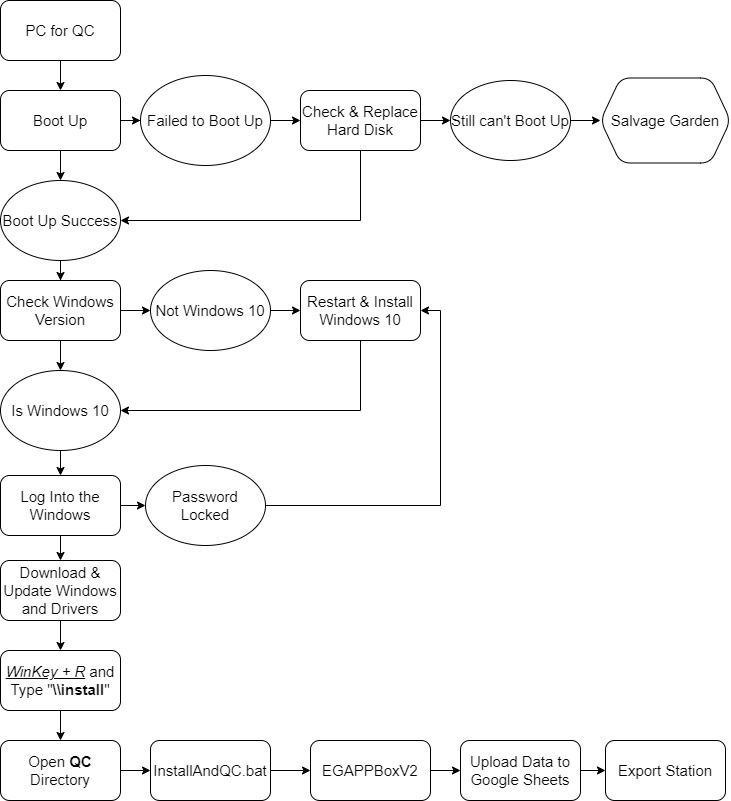
Boot Up
In computing, booting is the process of starting a computer. It can be initiated by hardware such as a button press, or by a software command. After it is switched on, a computer's central processing unit (CPU) has no software in its main memory, so some process must load software into memory before it can be executed.
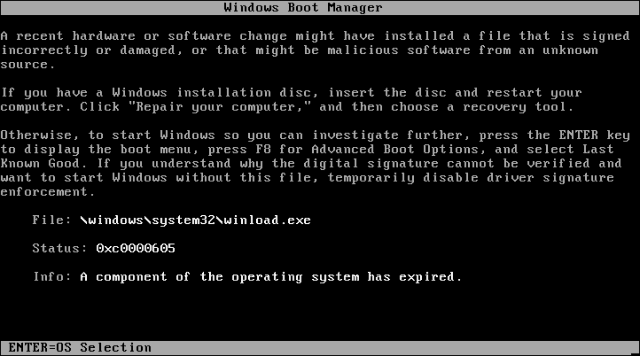
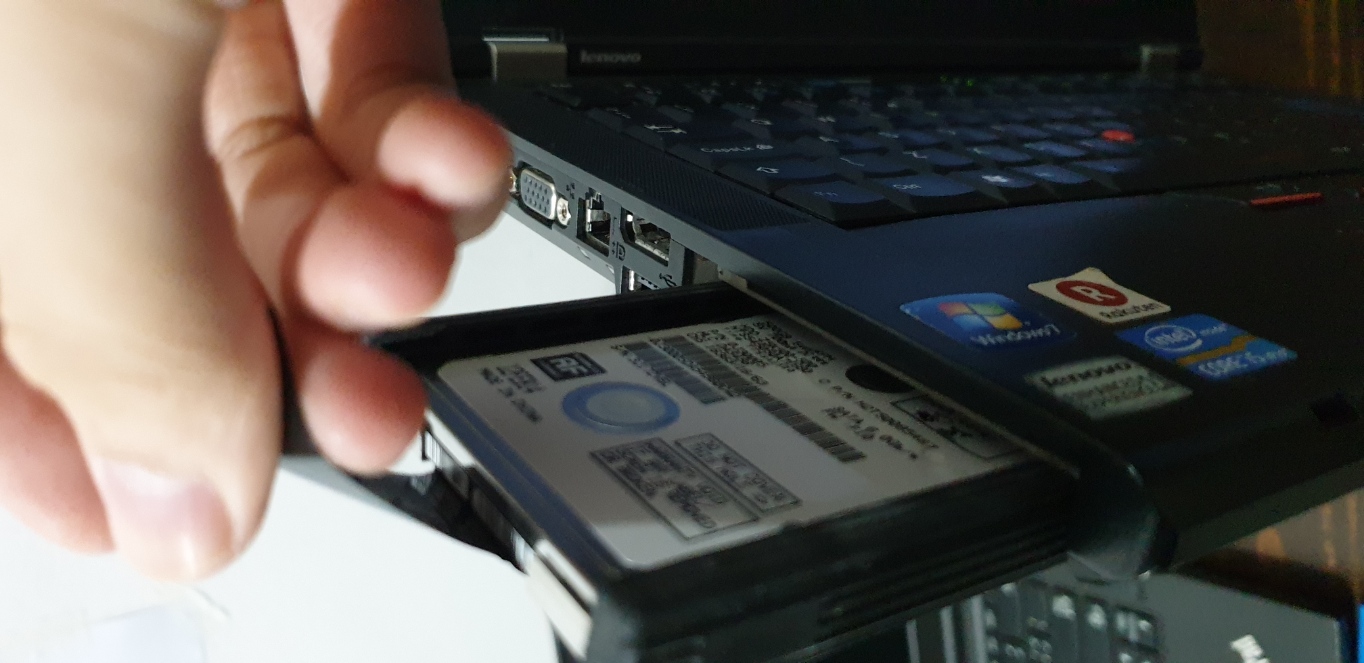
If the PC can't Boot Up normally, change Hard Disk.
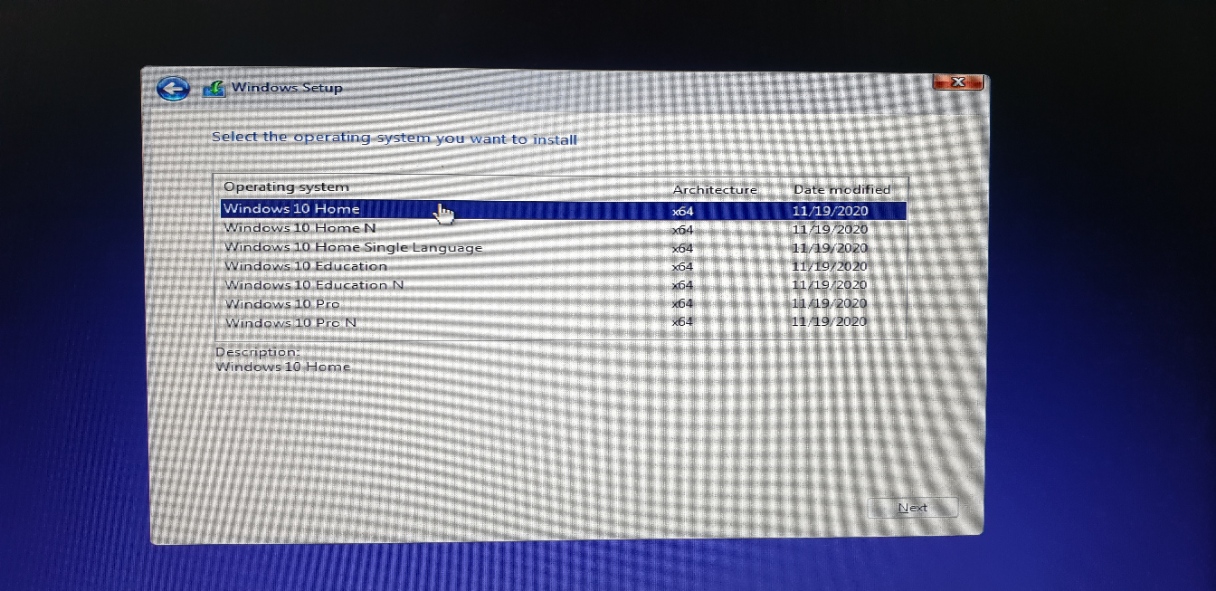
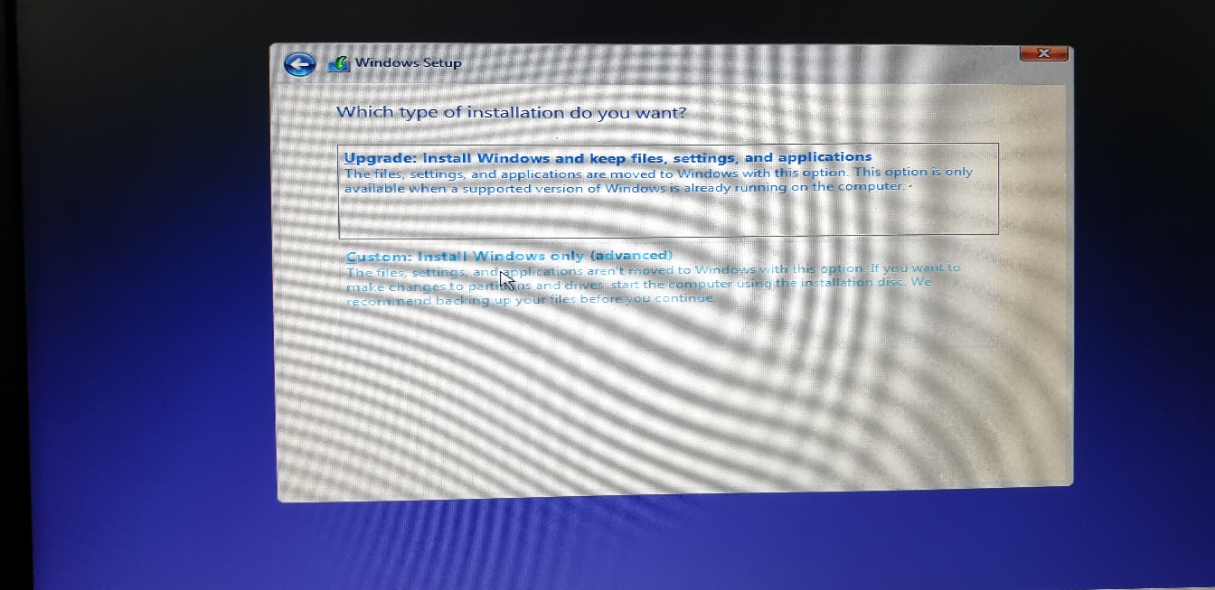
Reinstall Windows 10
When new Hard Disk is installed or any error occurs on the Windows, reinstall Windows 10.
Plug in the PenDrive with Windows 10 installation
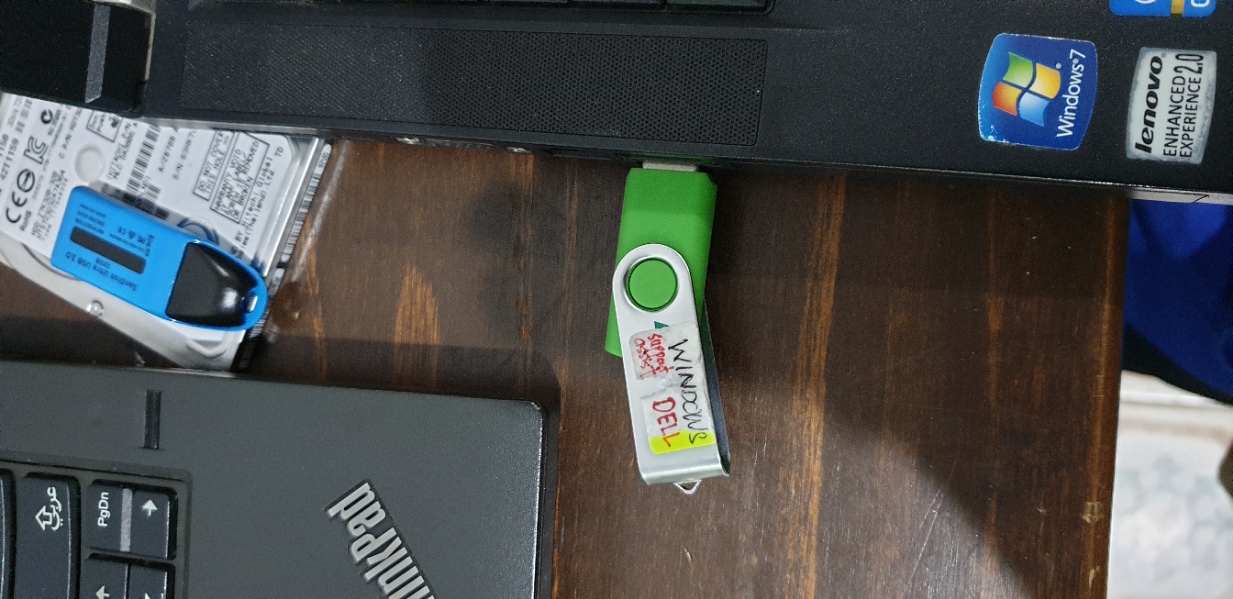
Boot Up from USB flash ...
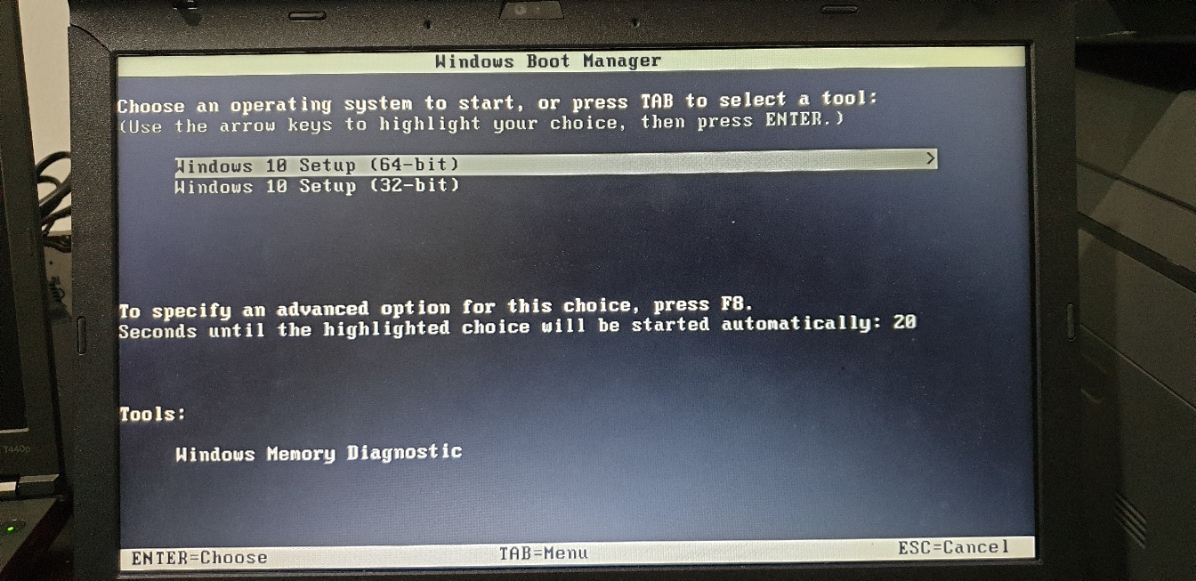
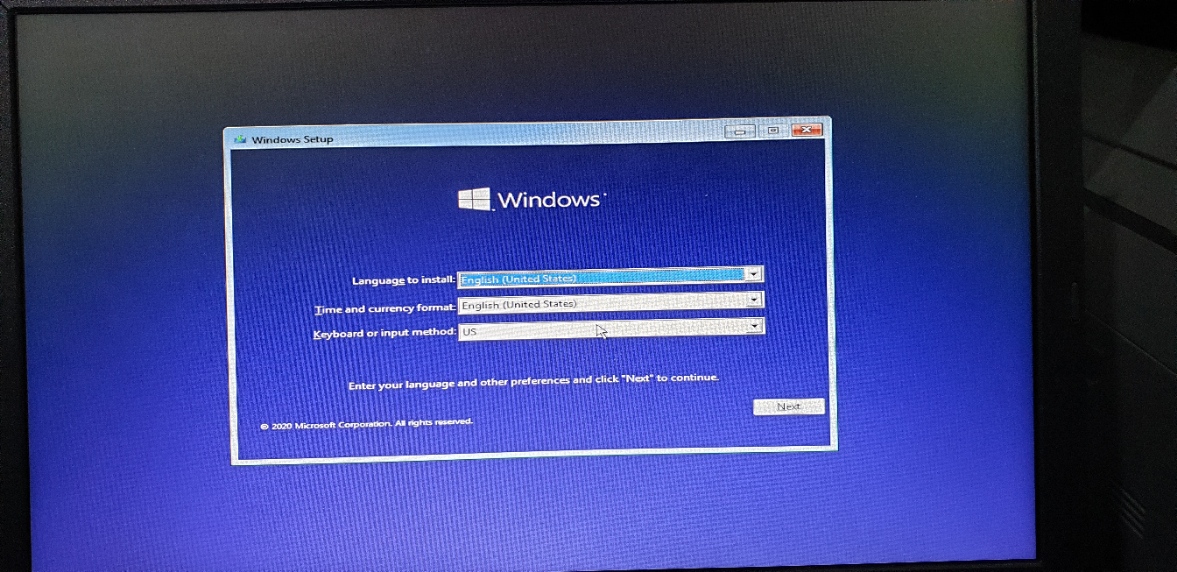
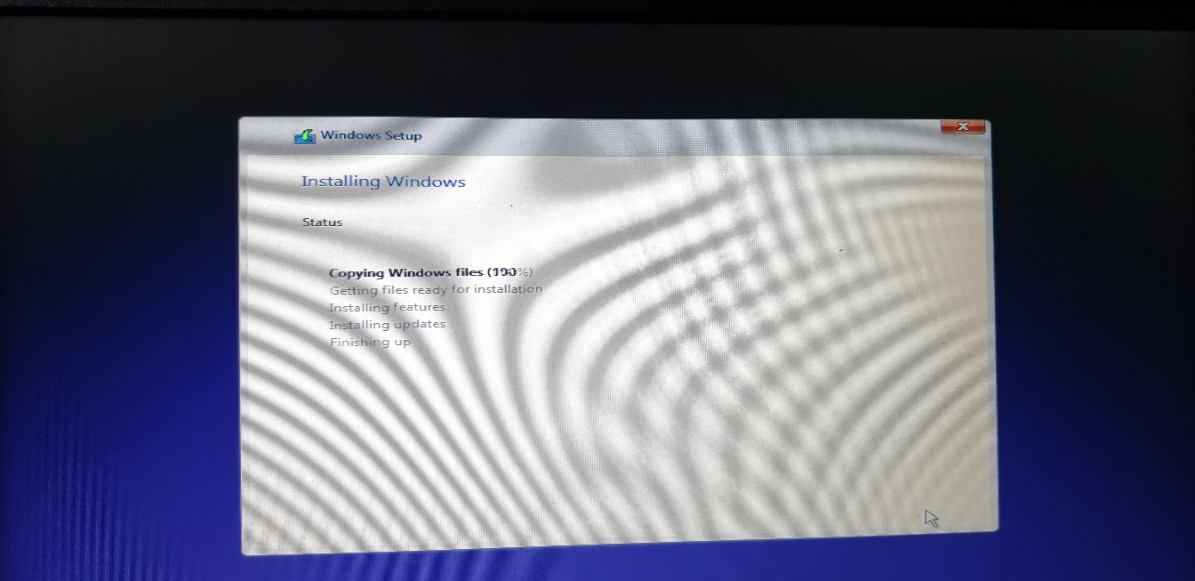
Start to Install Windows 10
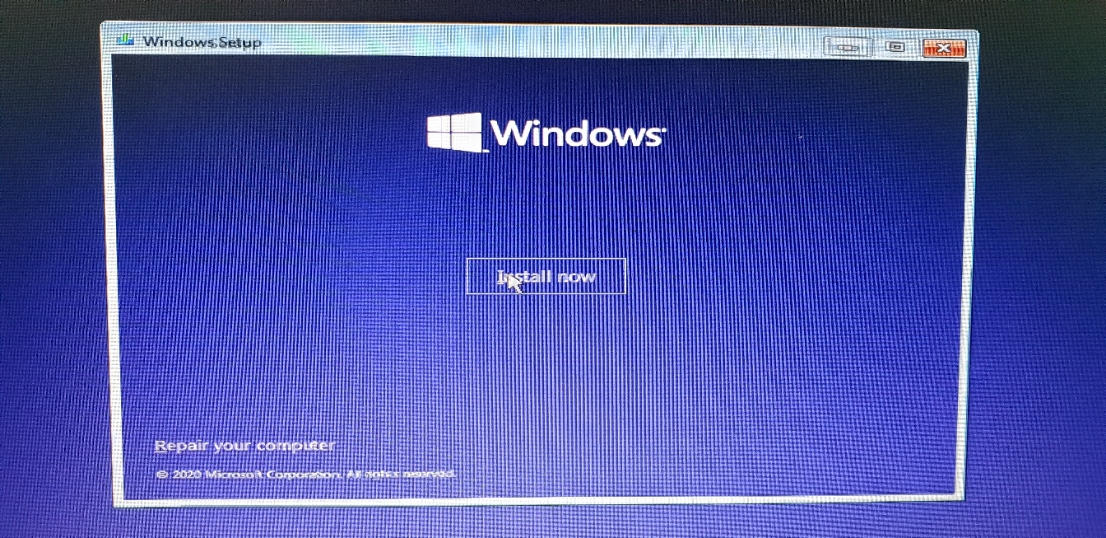
Select "I don't have product key" first.
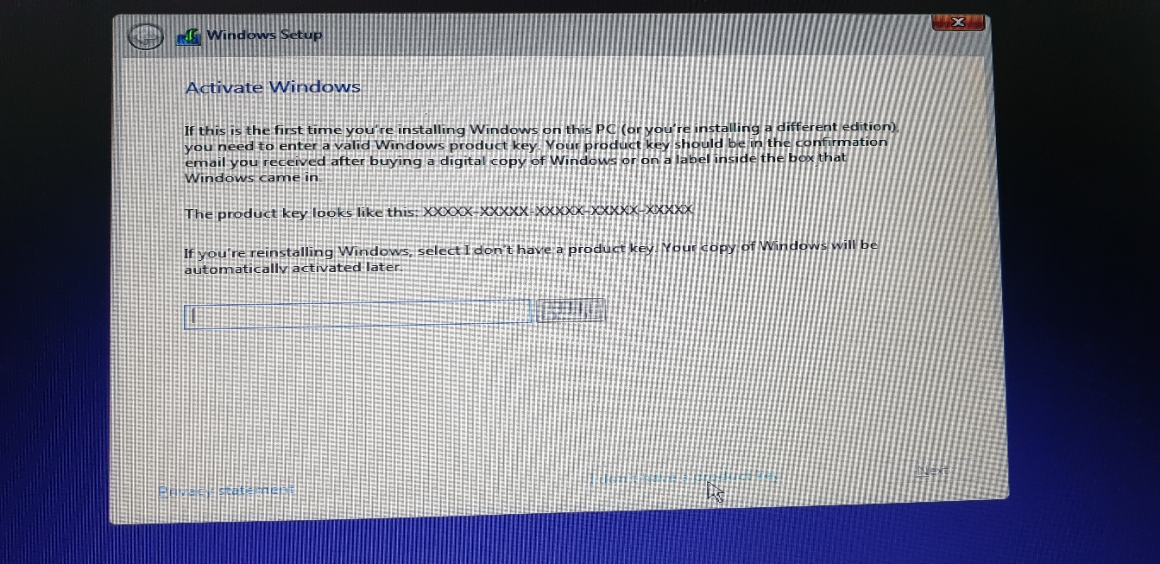

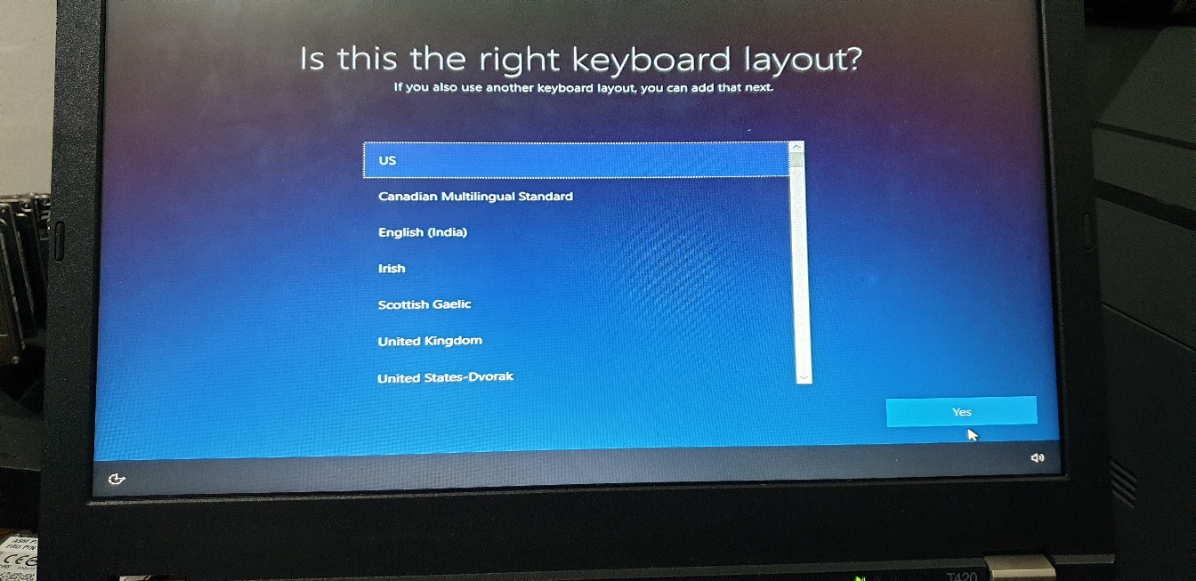
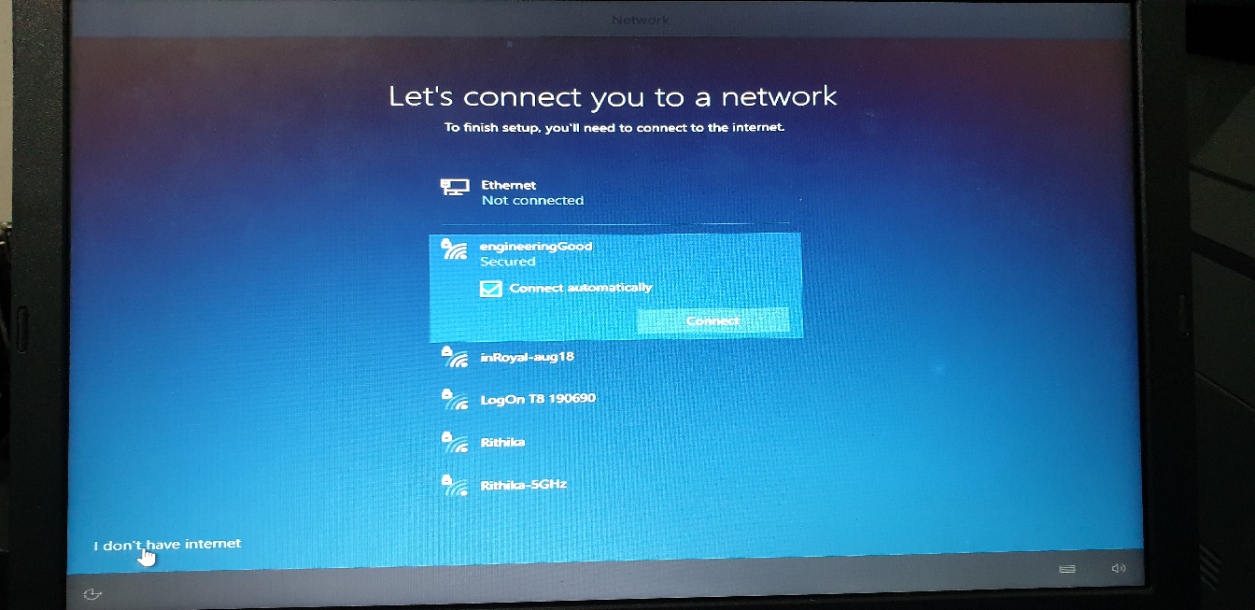
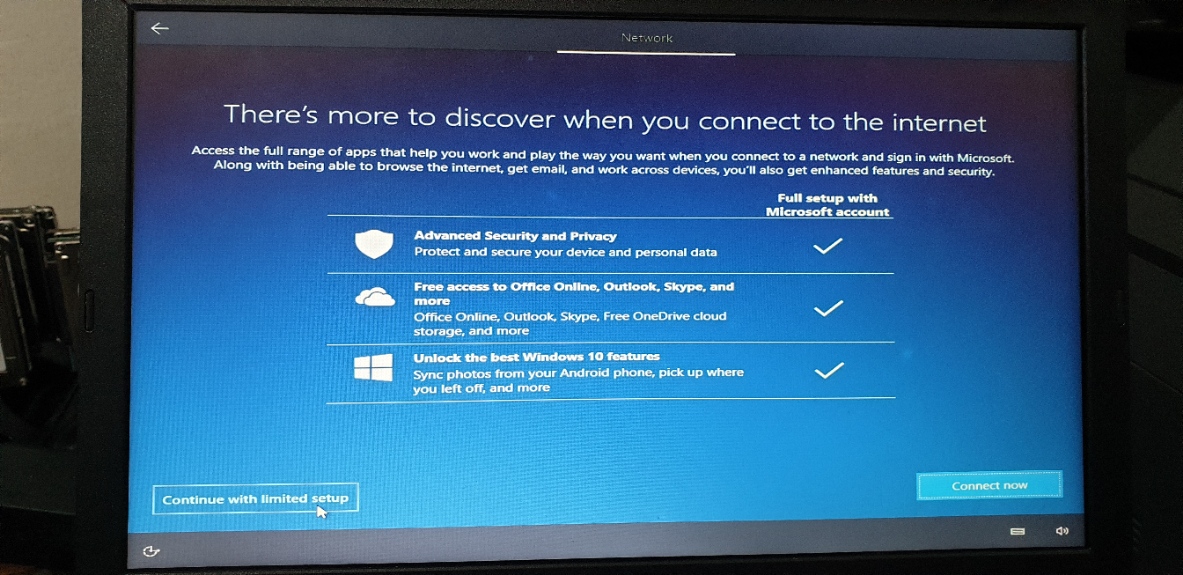
Please Select "I don't have Internet" first
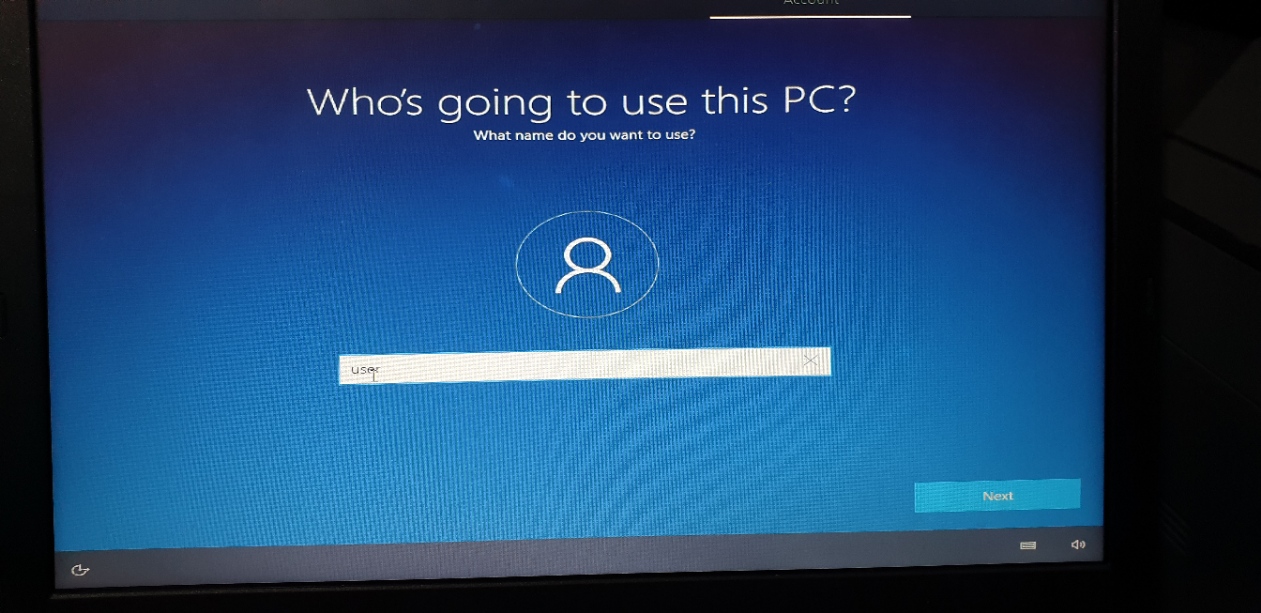
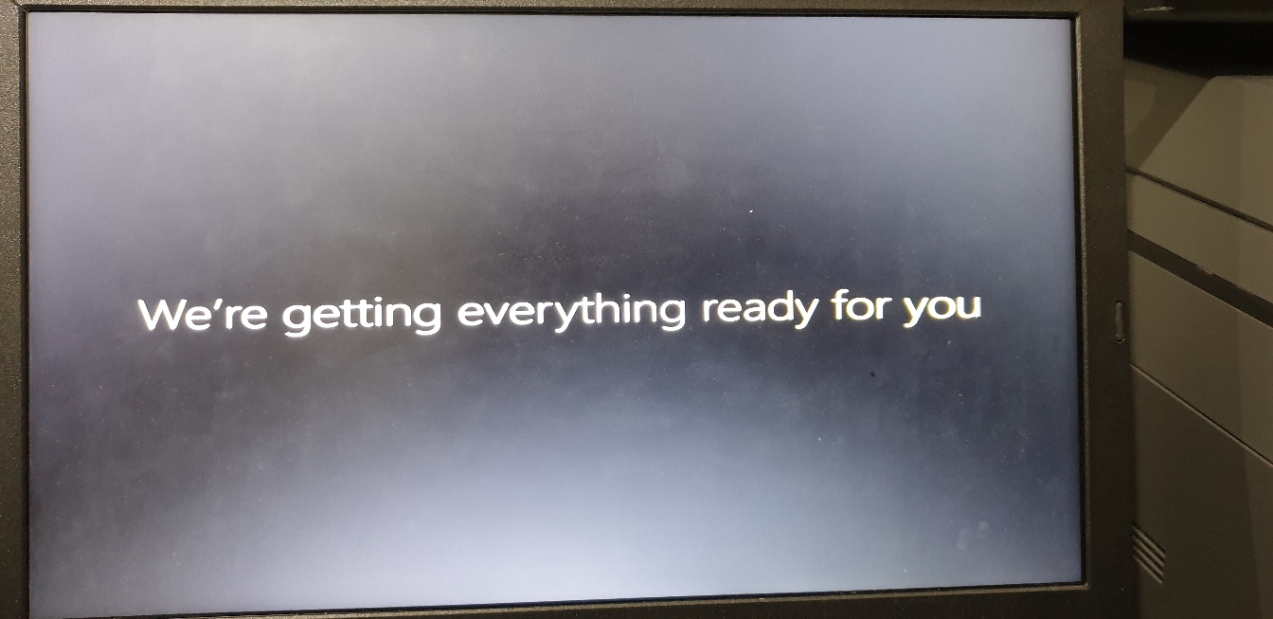
Type in "user" first.
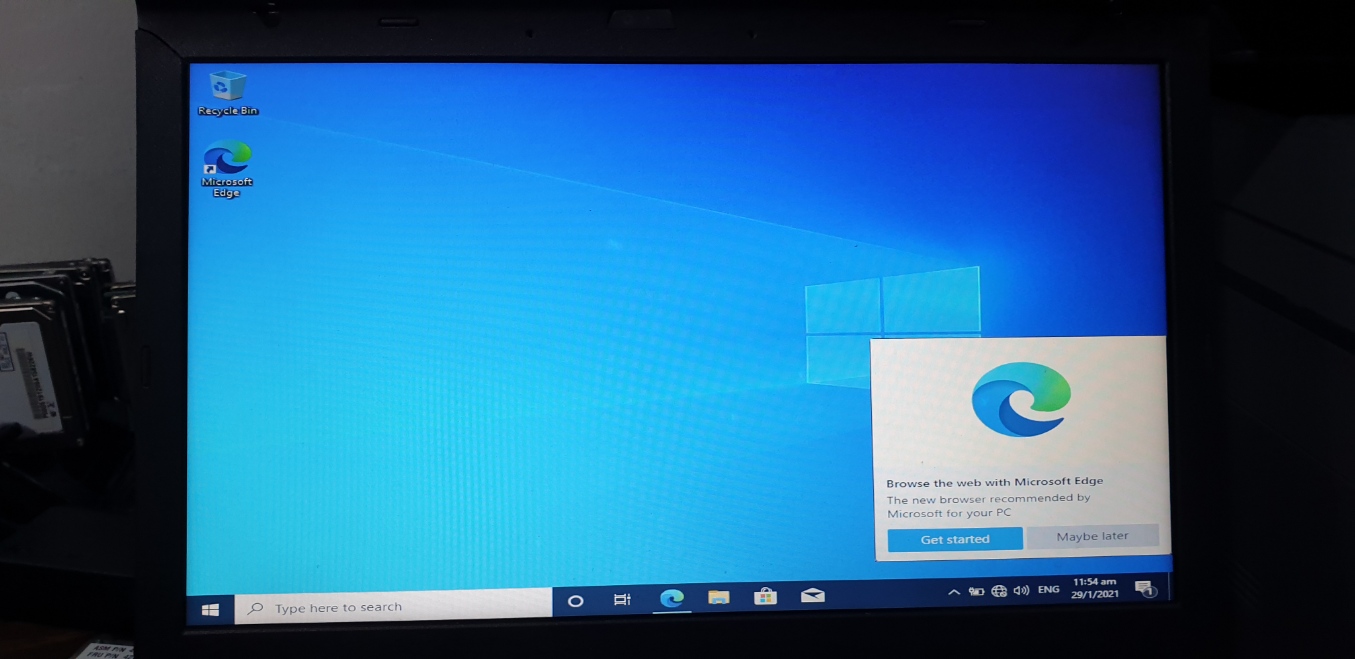
Windows & Drivers Update
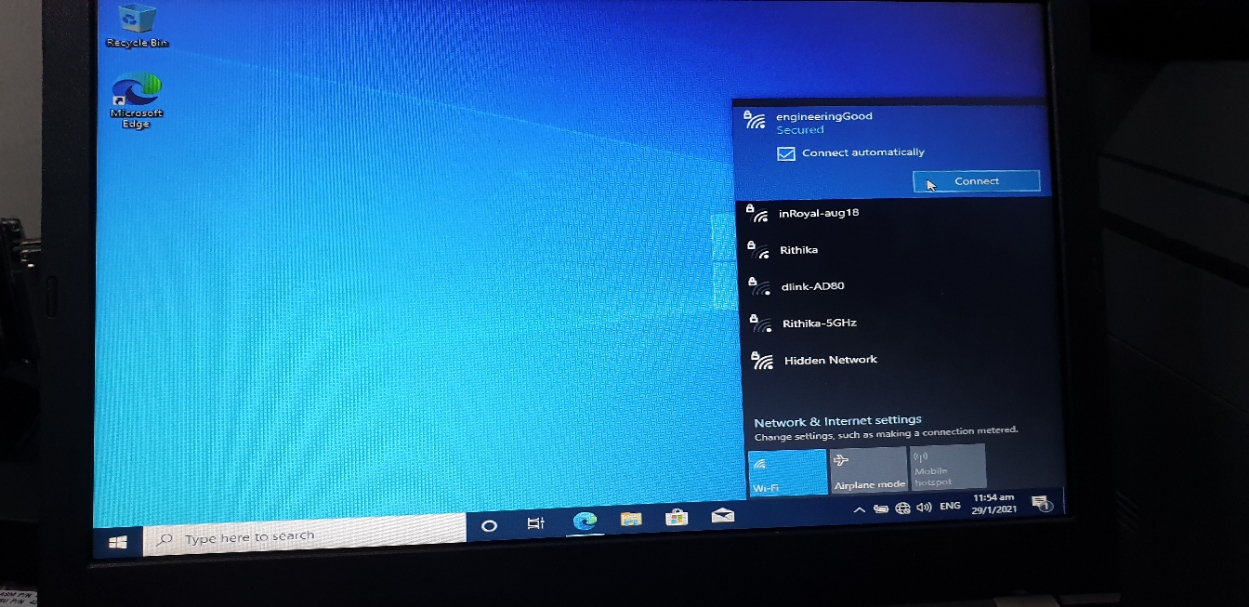
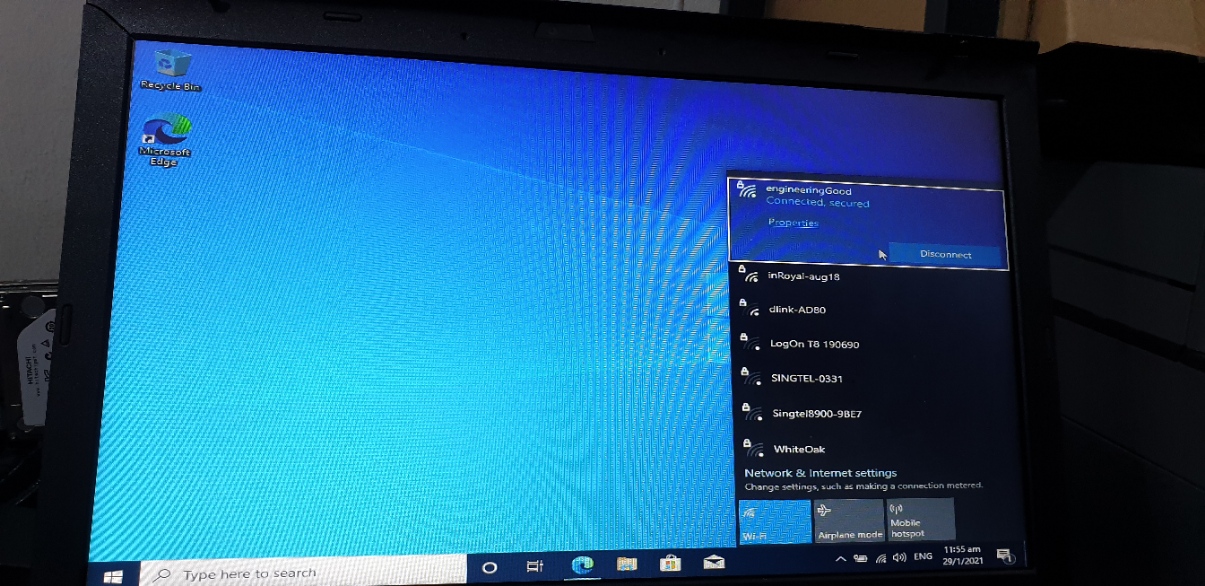
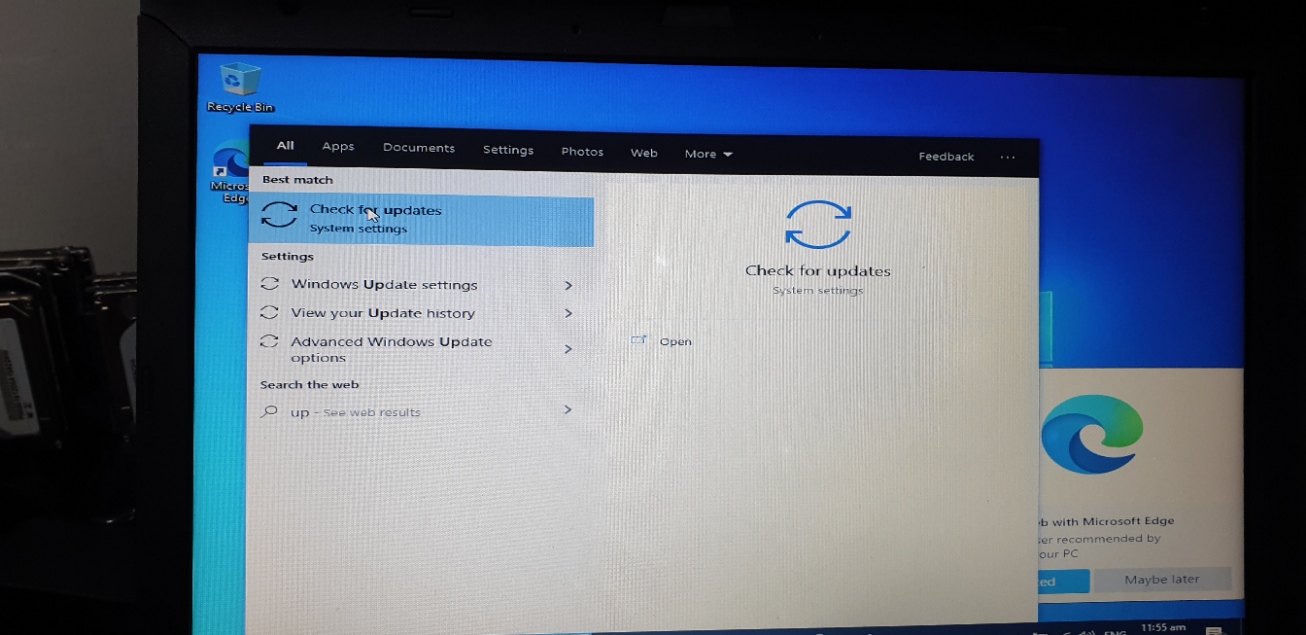
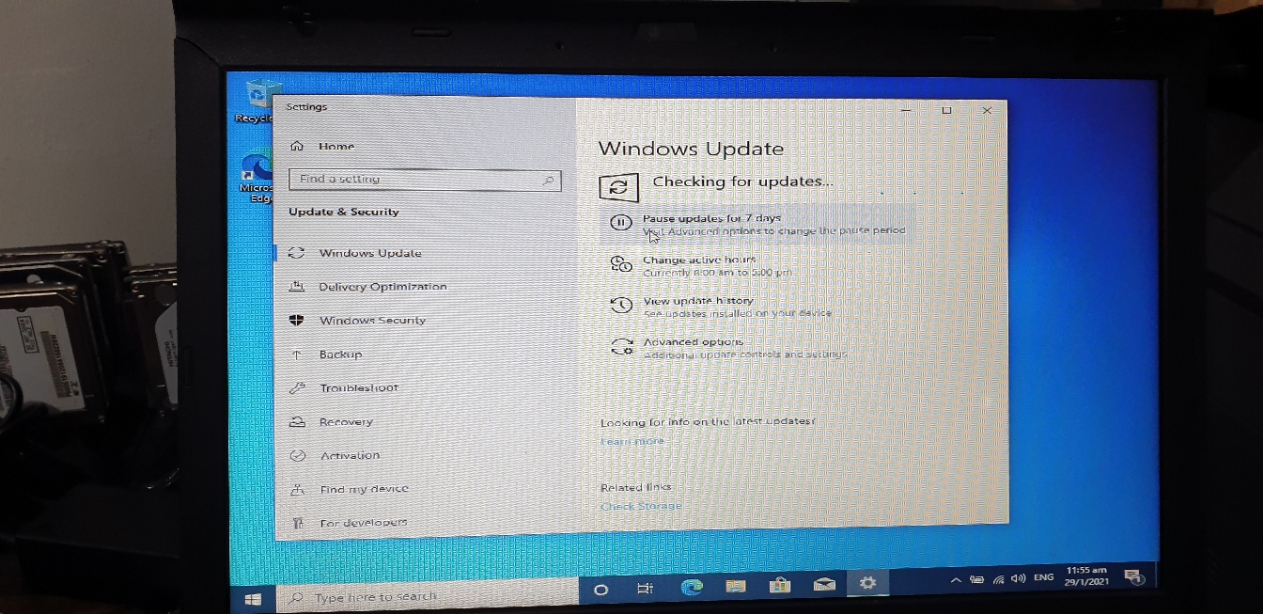
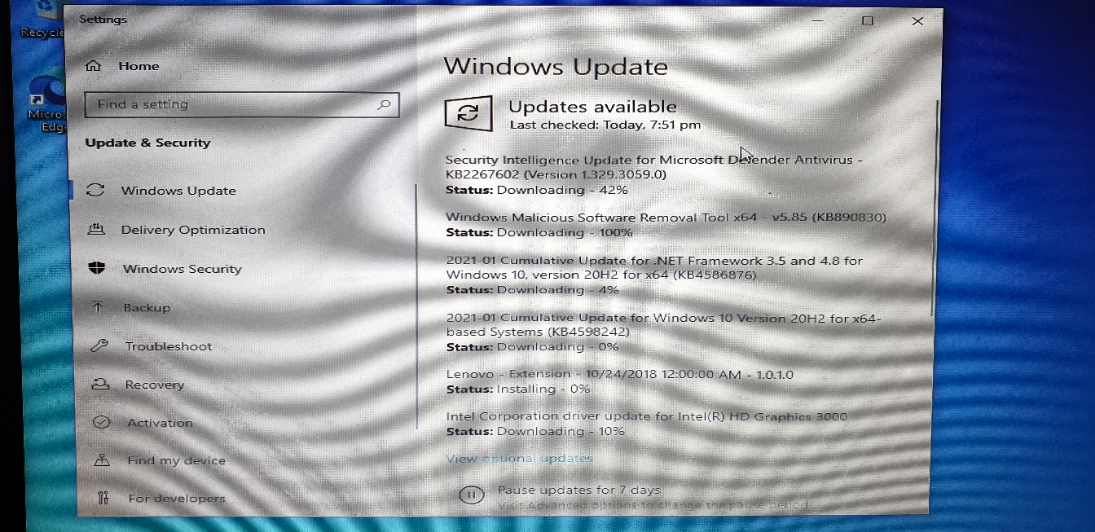
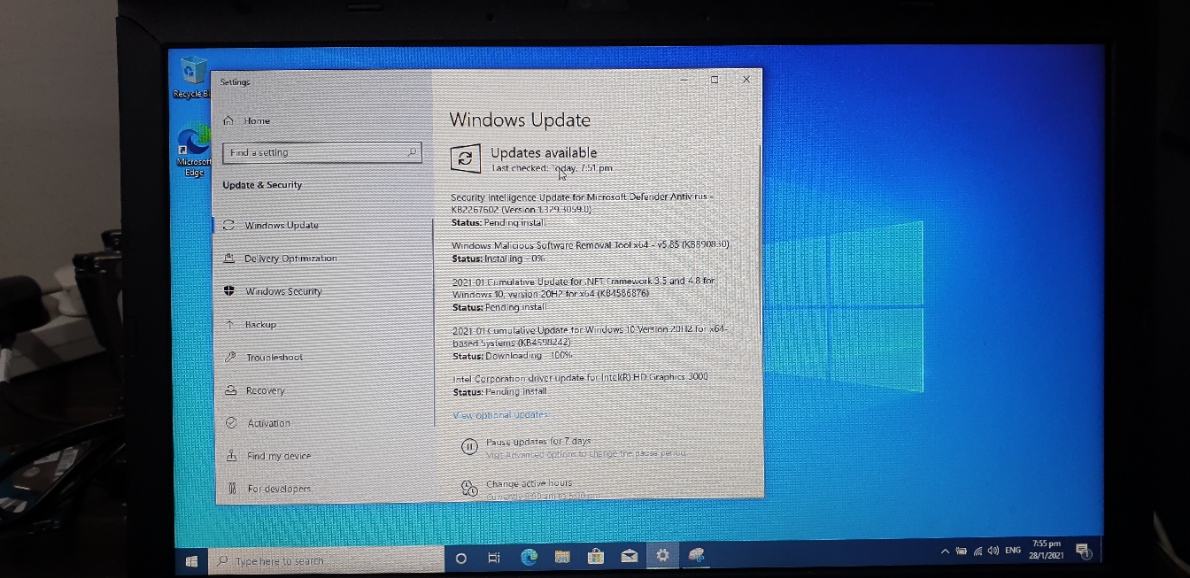
When the Windows is freshly installed, there are no hardware driver installed. Therefore users have to connect to Internet and start "Check for Updates".
Connect to Internet
"Check for Updates"
Run InstallAndQC Script
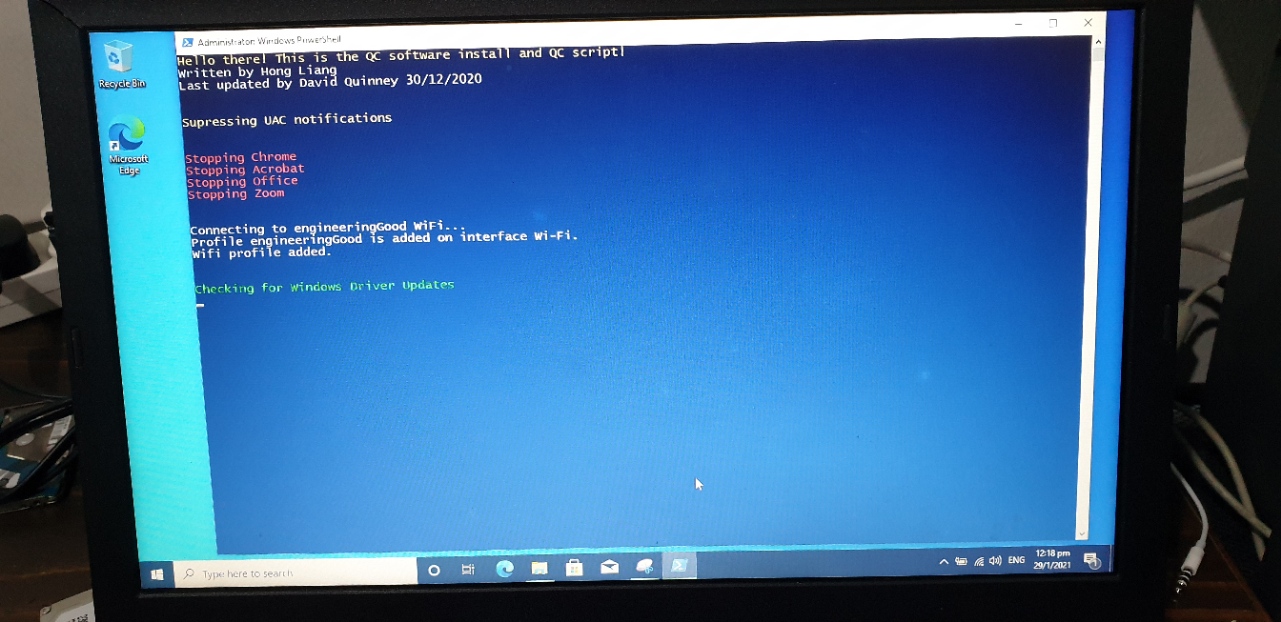
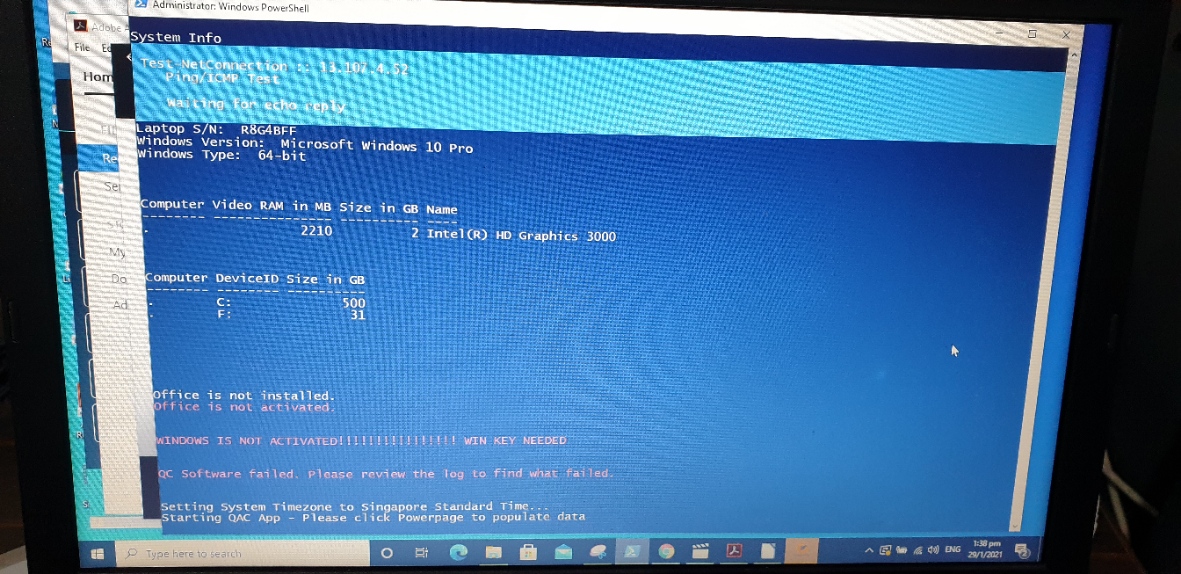
This Script is written by Engineering Good to Check for Windows Updates and Install Essential Software like Google Chrome, Zoom, Adobe Reader ... etc
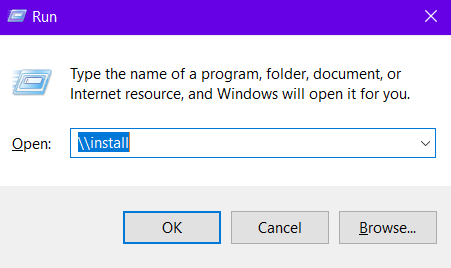
Press "Windows Key + R" and Type in "\\install"
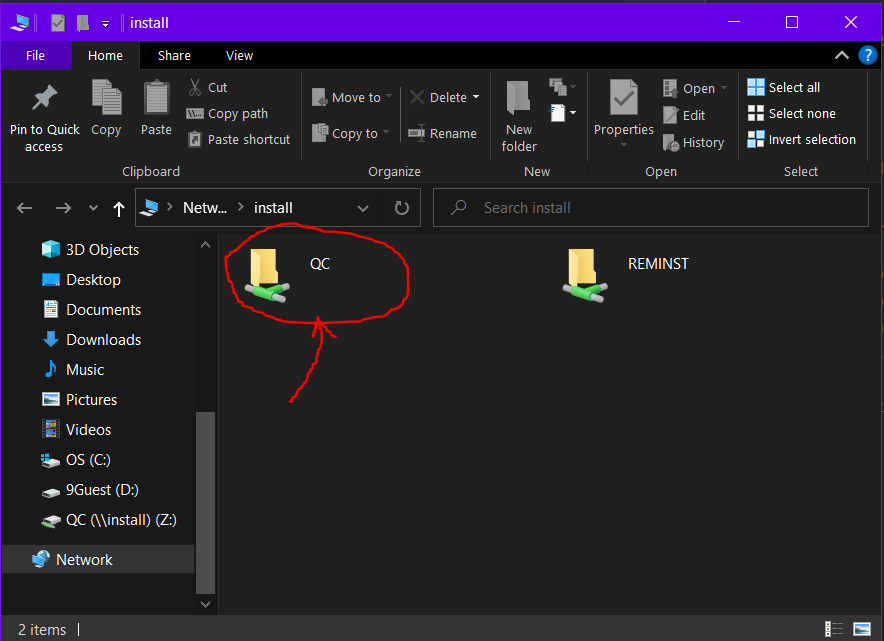
Click the "QC" directory
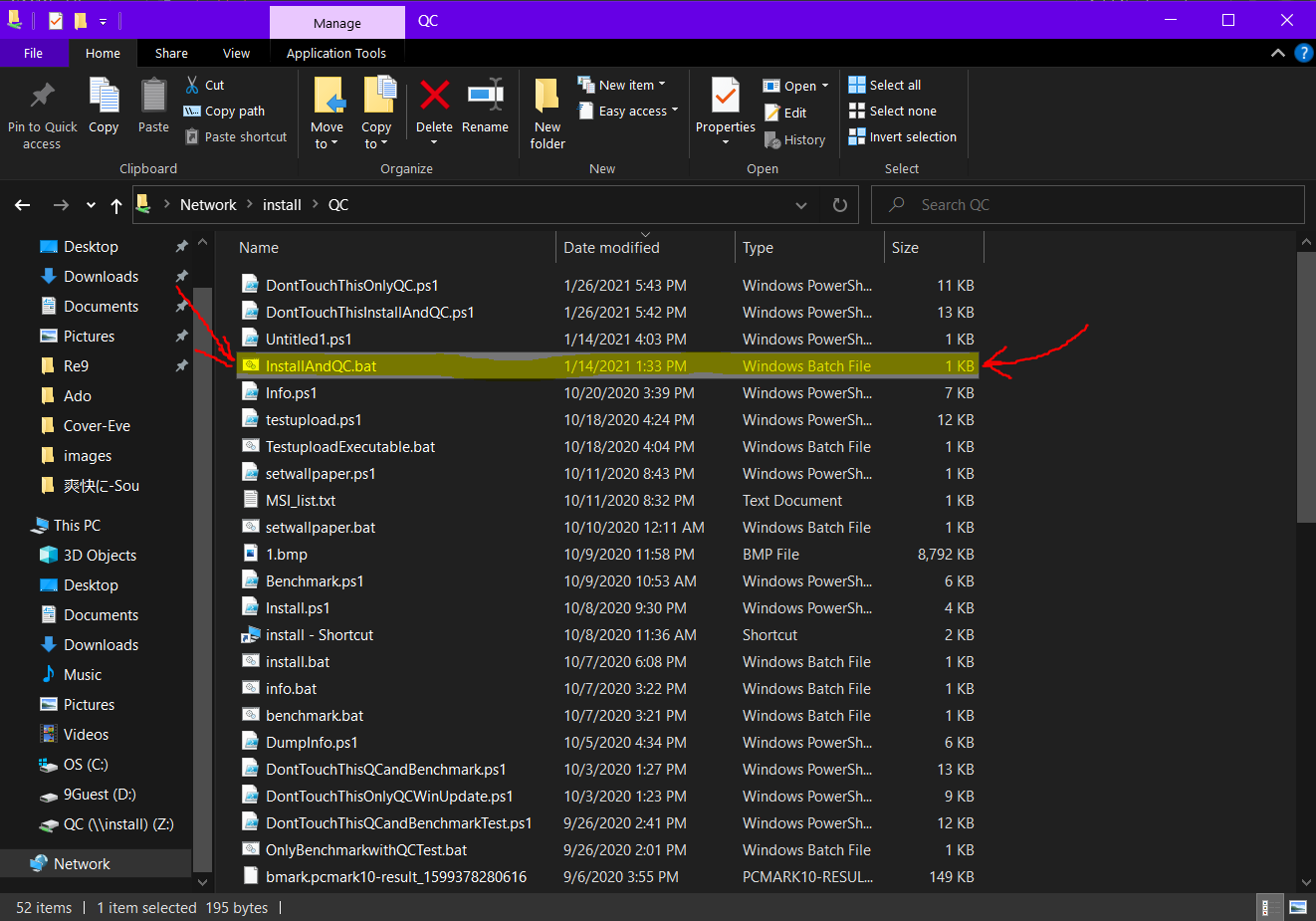
Search for "InstallAndQC" batch file and run it
Activate Windows
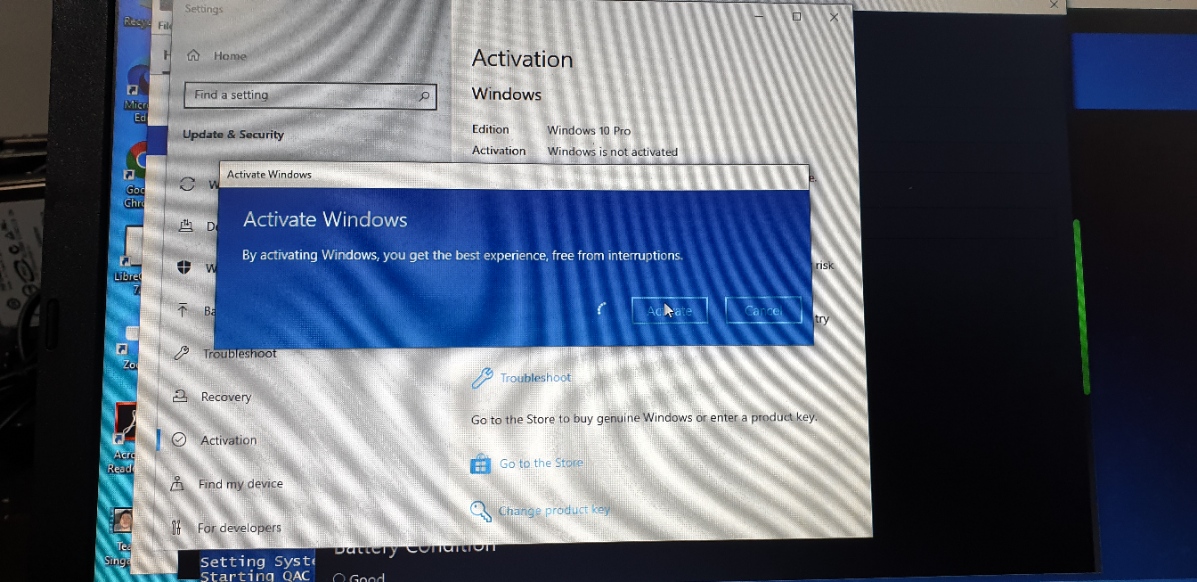
When the Windows is freshly installed by following the above steps, the Windows is not yet activated.
Check the back of the PC and search for Windows Product Key. Sometimes it is hiding under the battery.
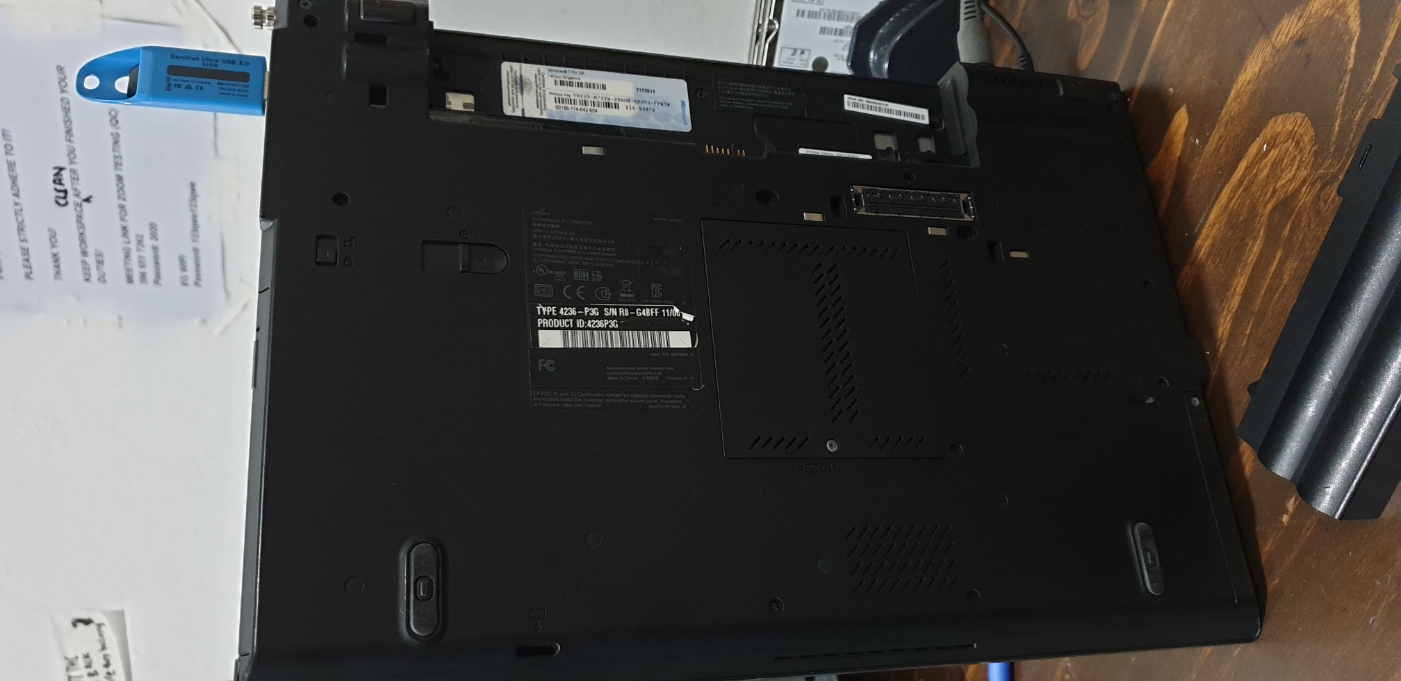
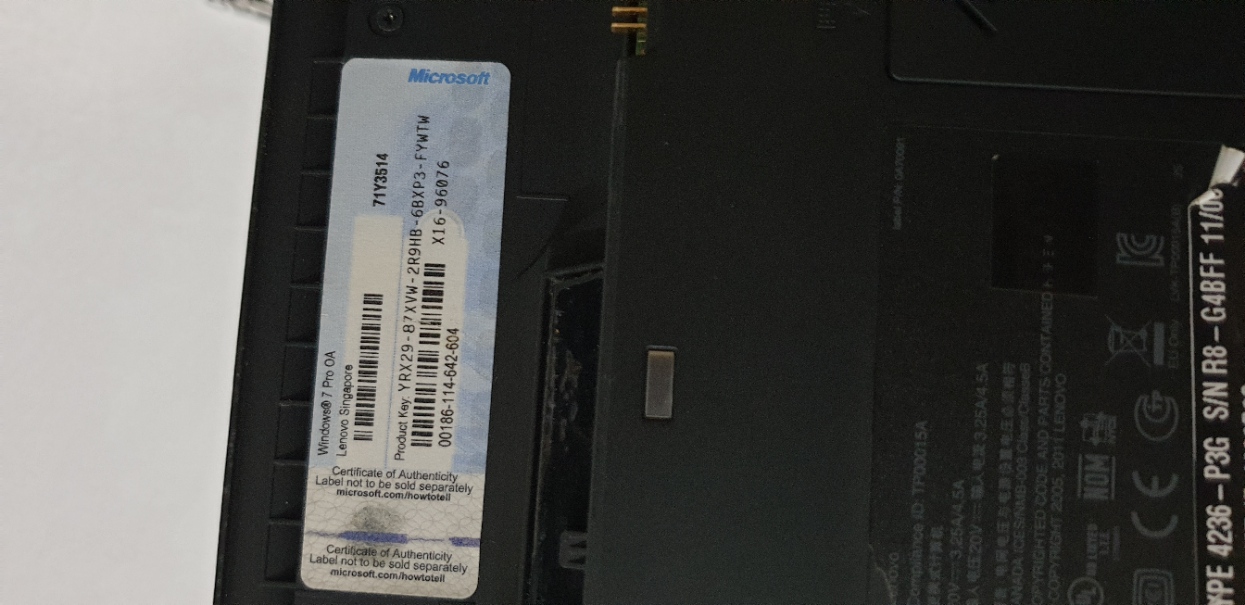
Next, enter the product key found to activate the Windows
EGAPPBoxV2
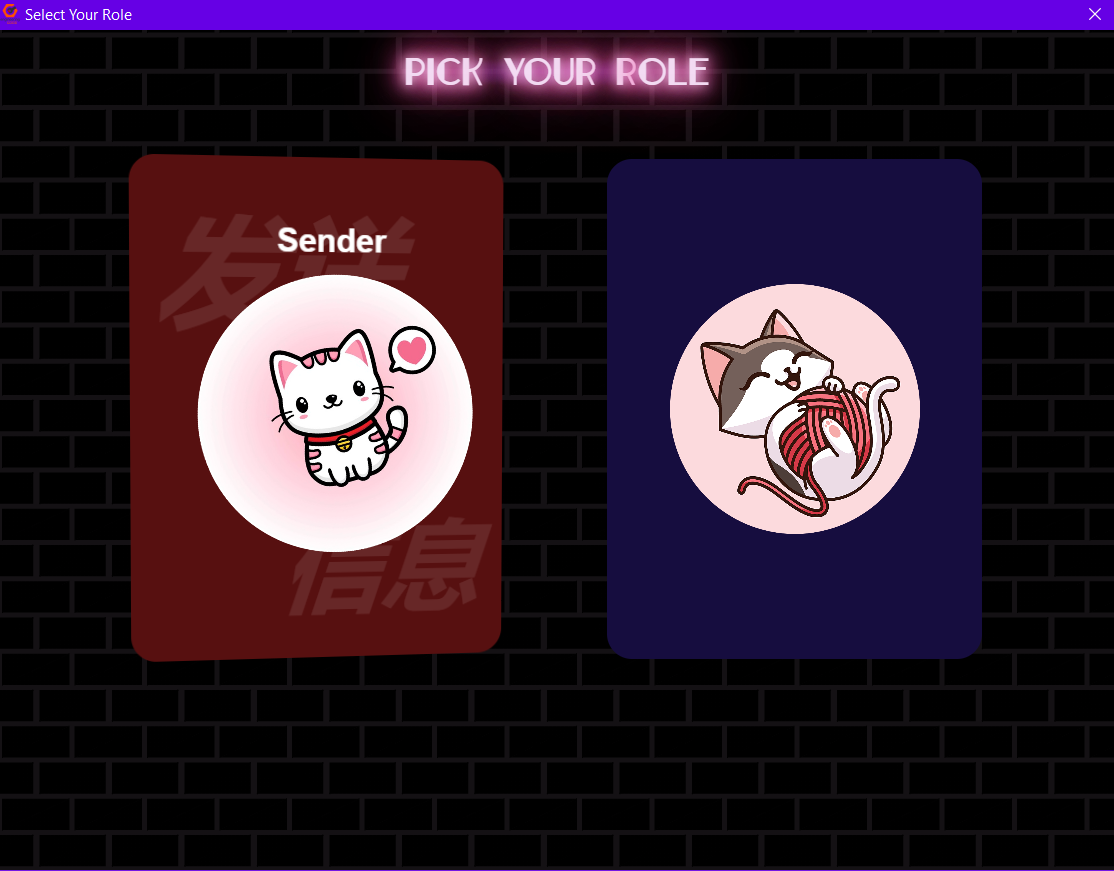
Record the PC details and send it to EG Google Sheets. There is "Sender" and "Receiver" Roles in the main page. Each carries out different functions.
Main Page
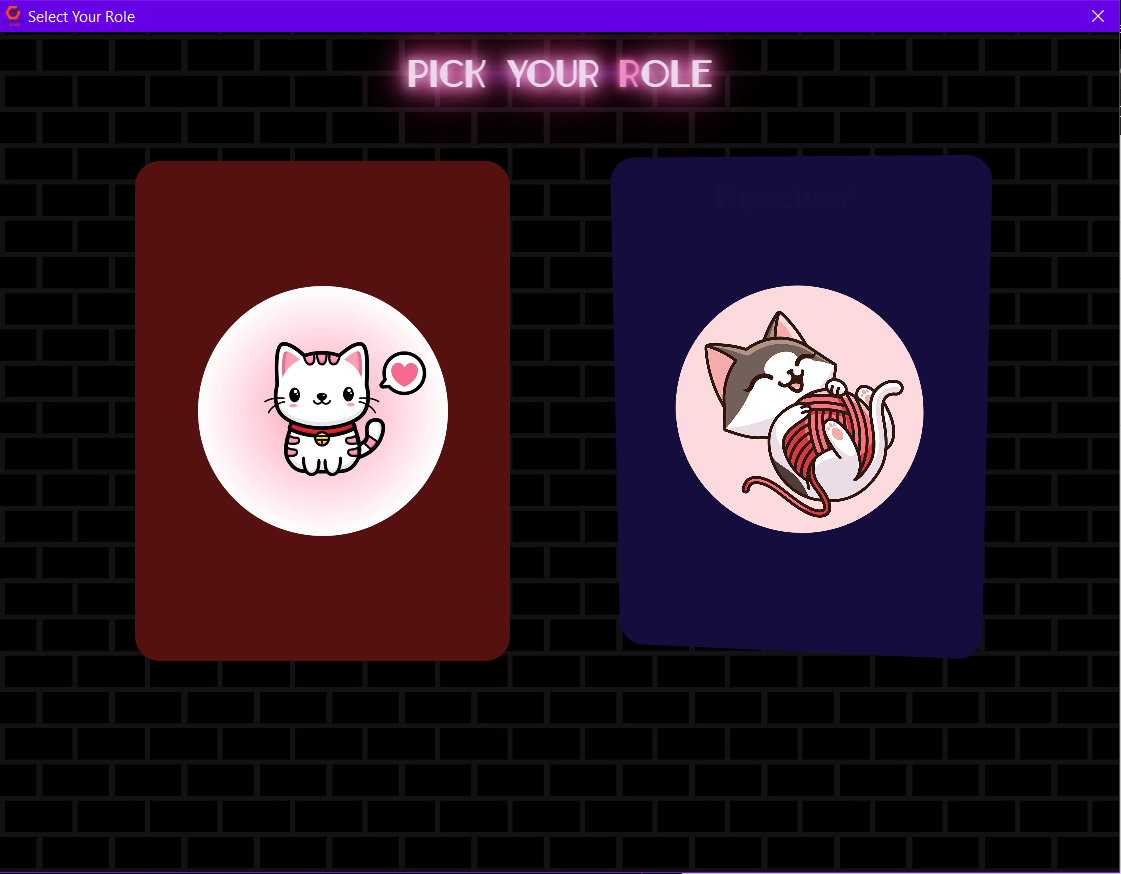
Select "Sender" and click it
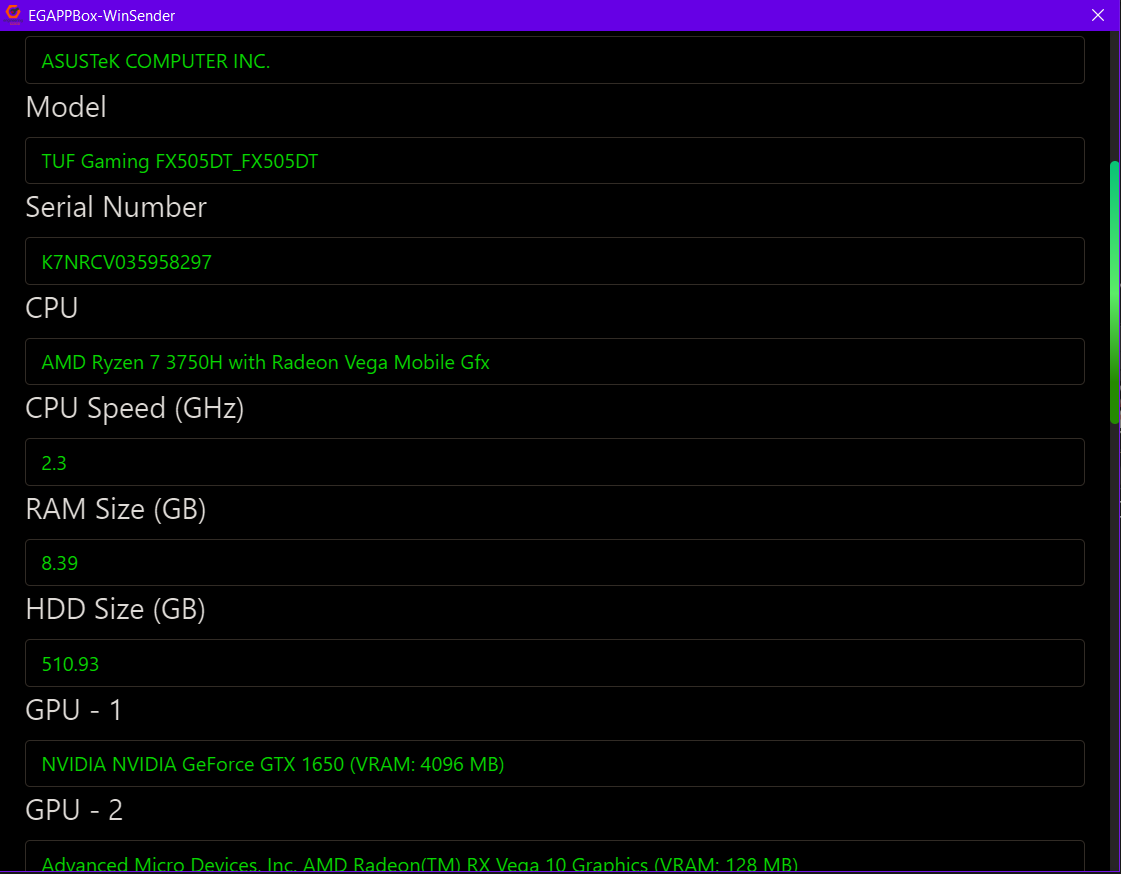
Check, Edit Fill in the Details of the PC
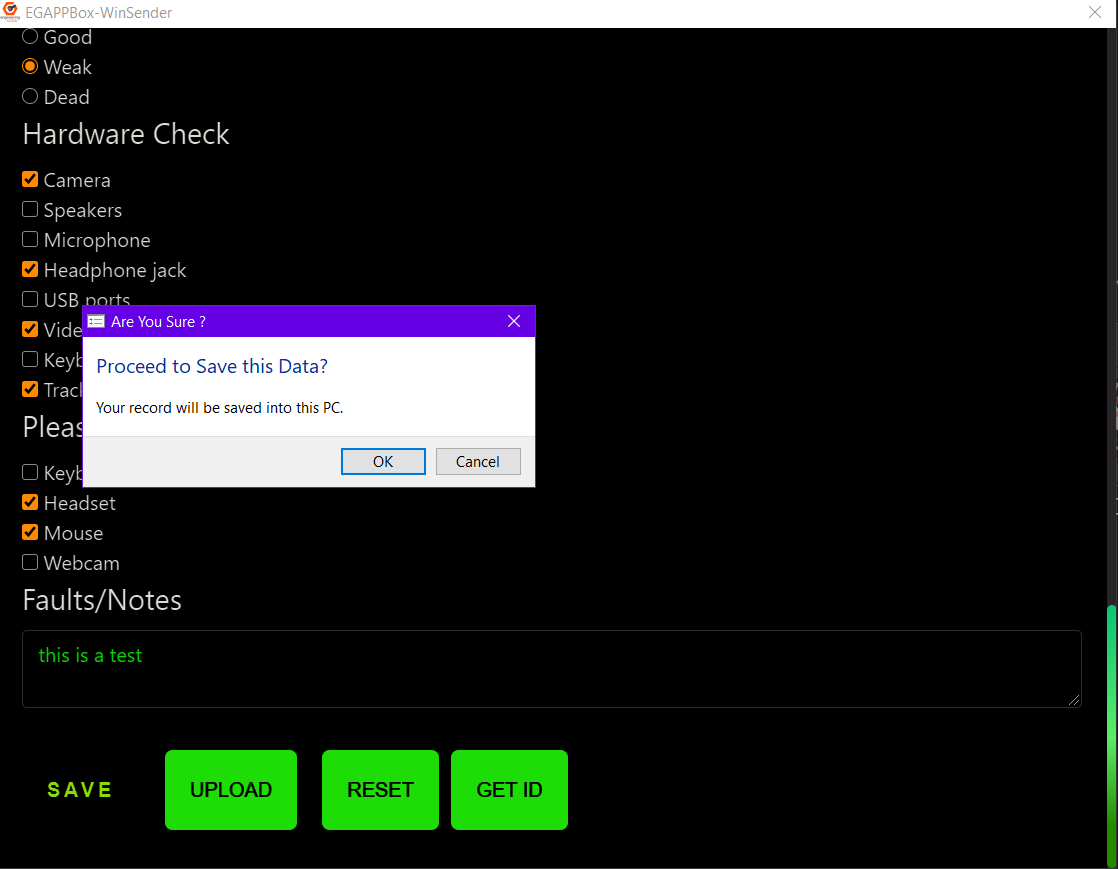
Click "save"
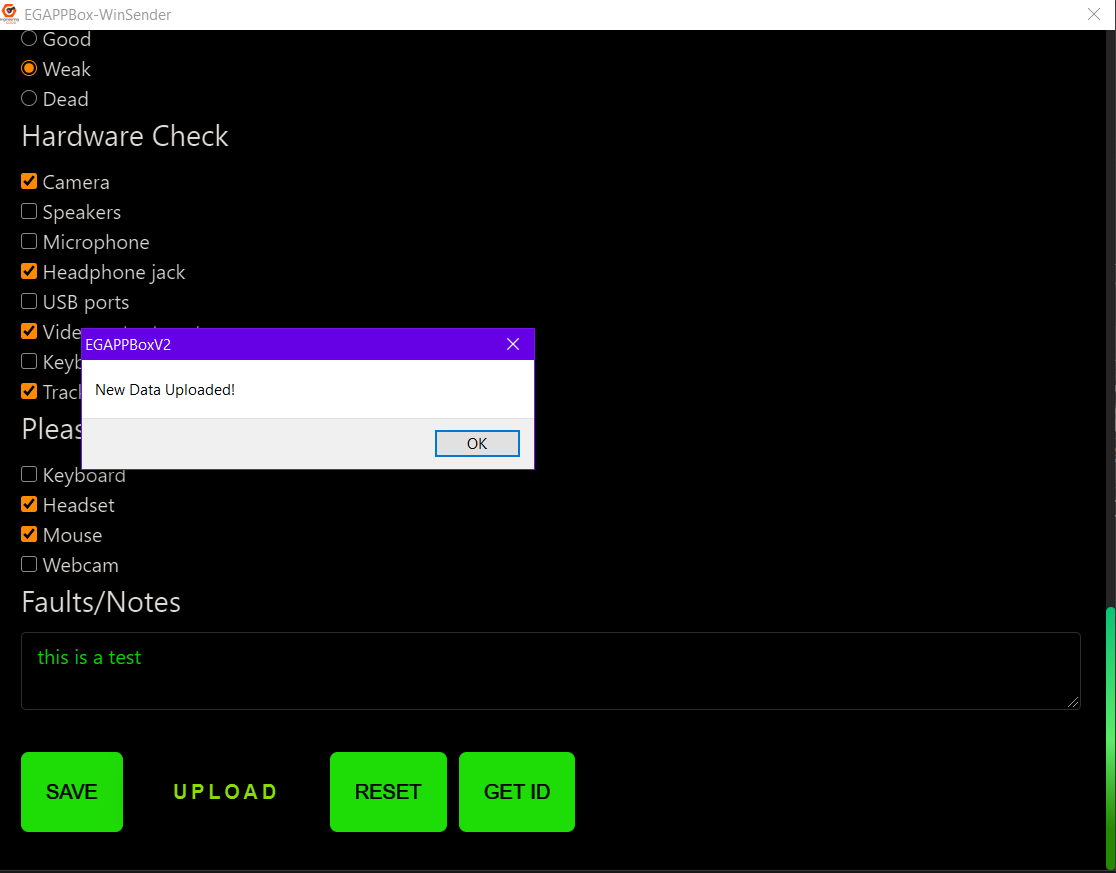
Click "upload"
Click "Get ID"
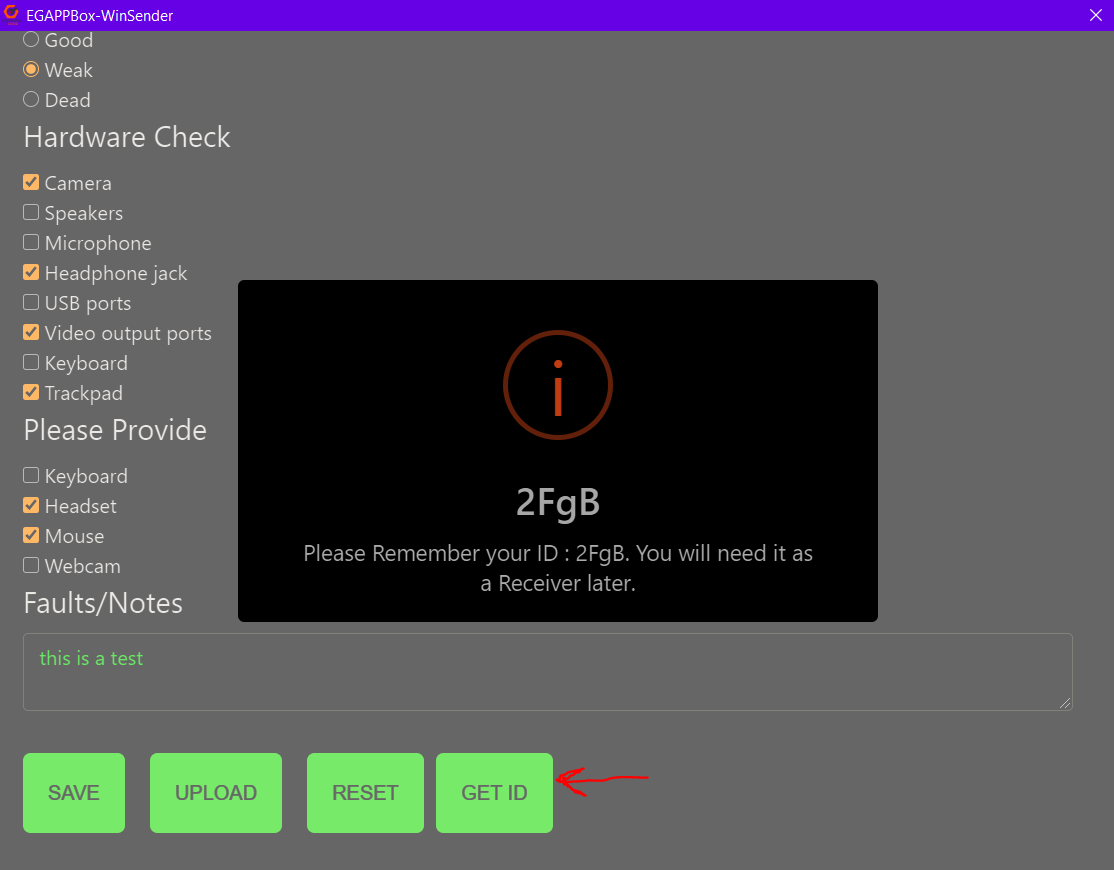
To Update the new edit info, just click "save" and "upload" again.
As a receiver for the data uploaded, Click the "Receiver" role in the main page
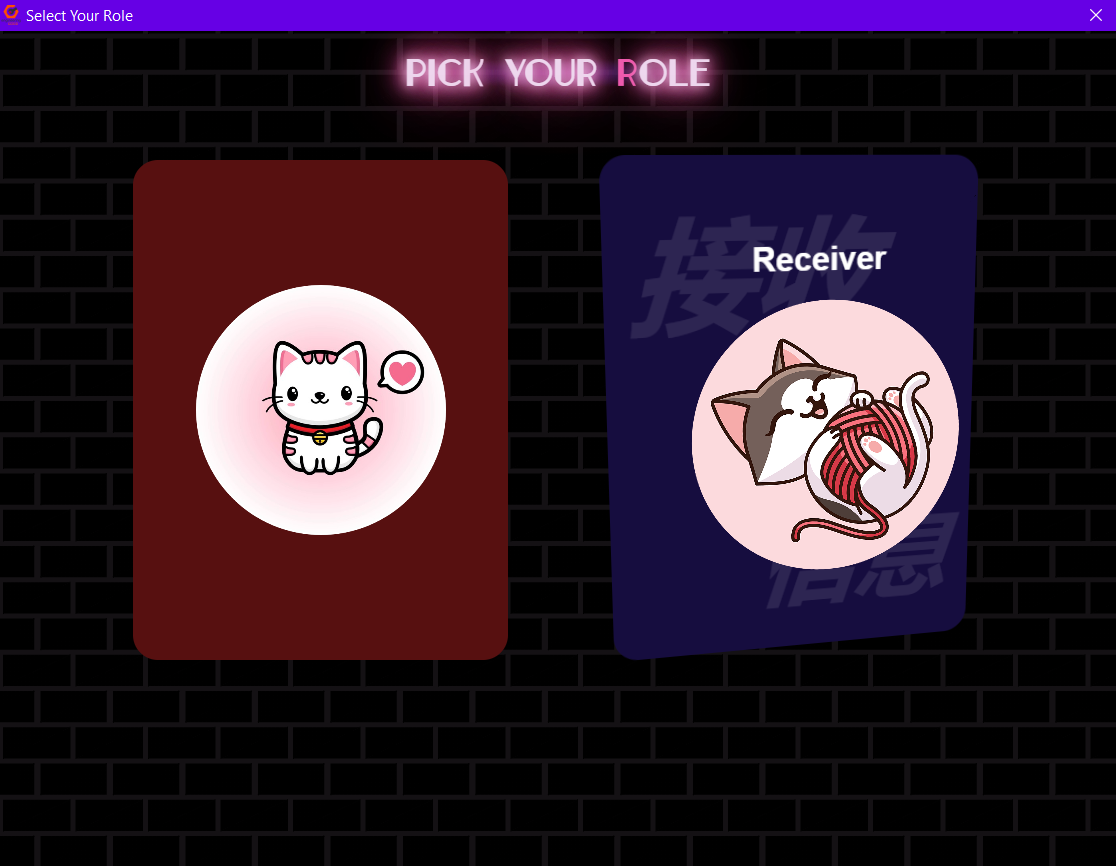
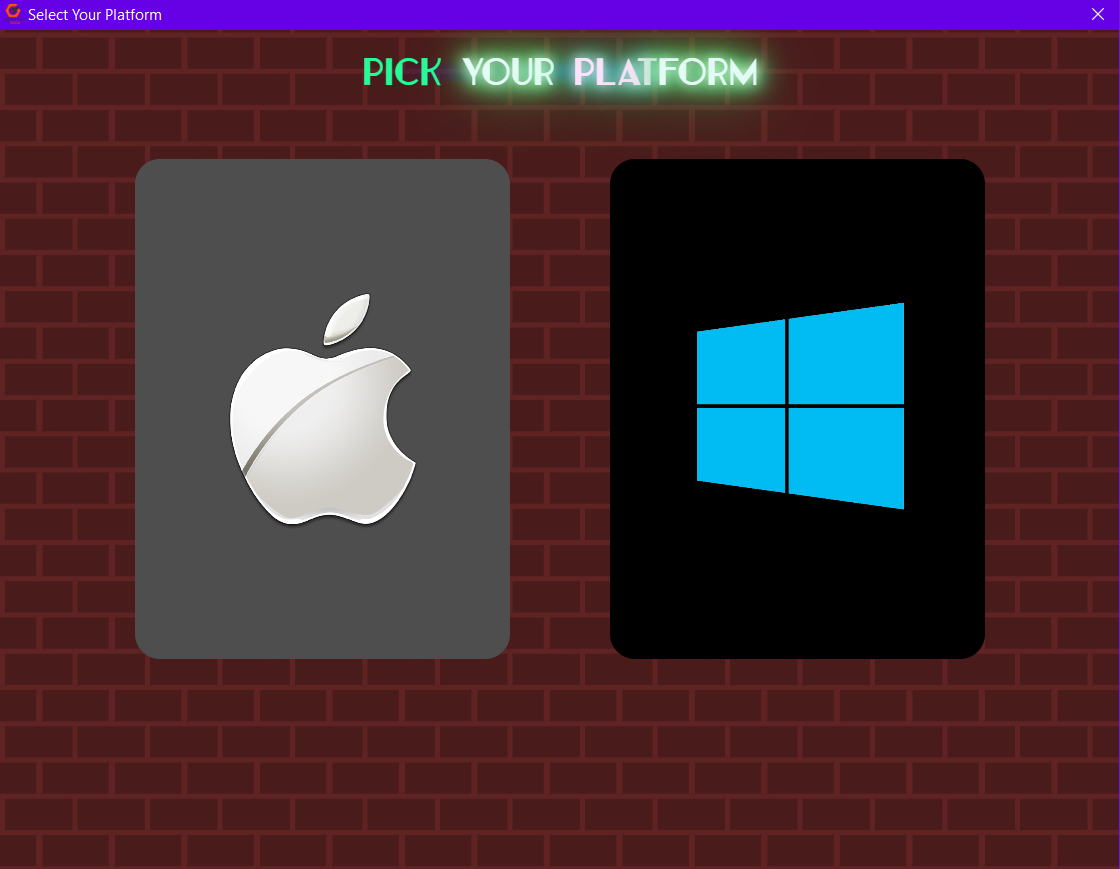
Next Select platform
Enter ID and Click "POWER PAGE"
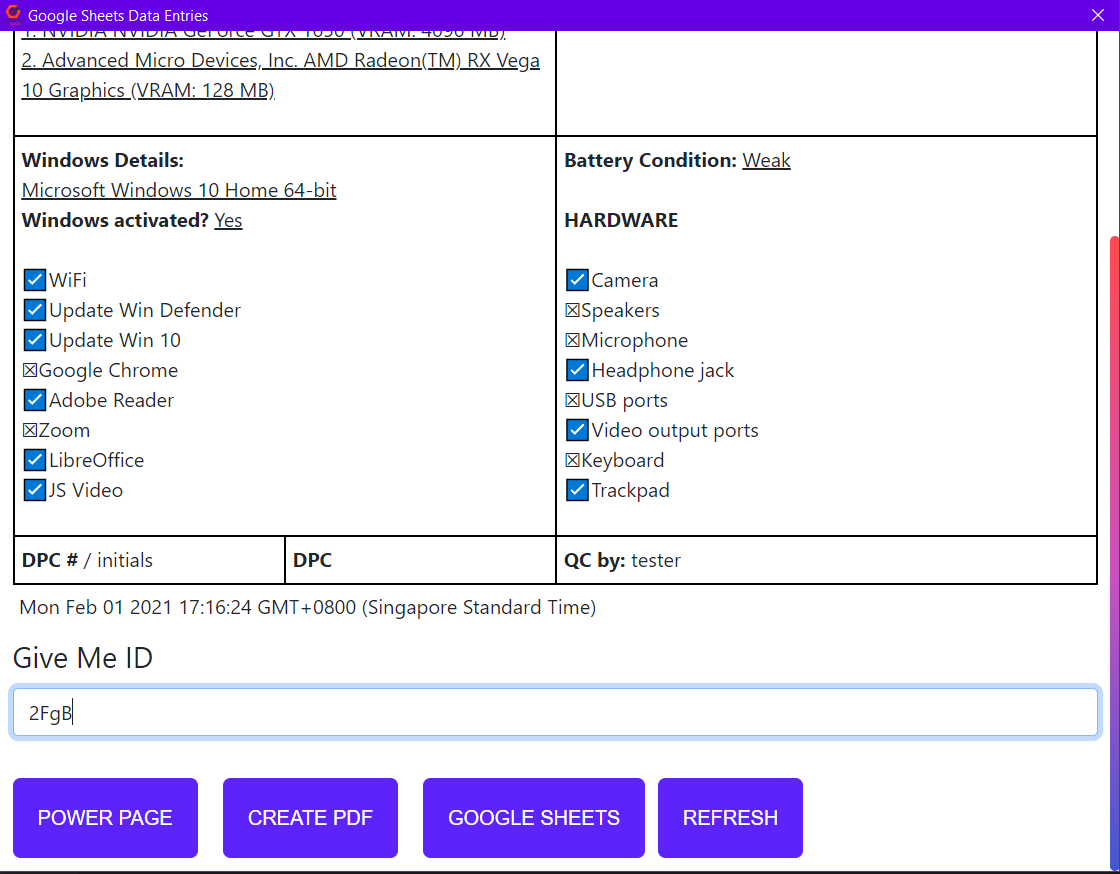
Click "CREATE PDF" 2 times. It is normal to see an error at first.
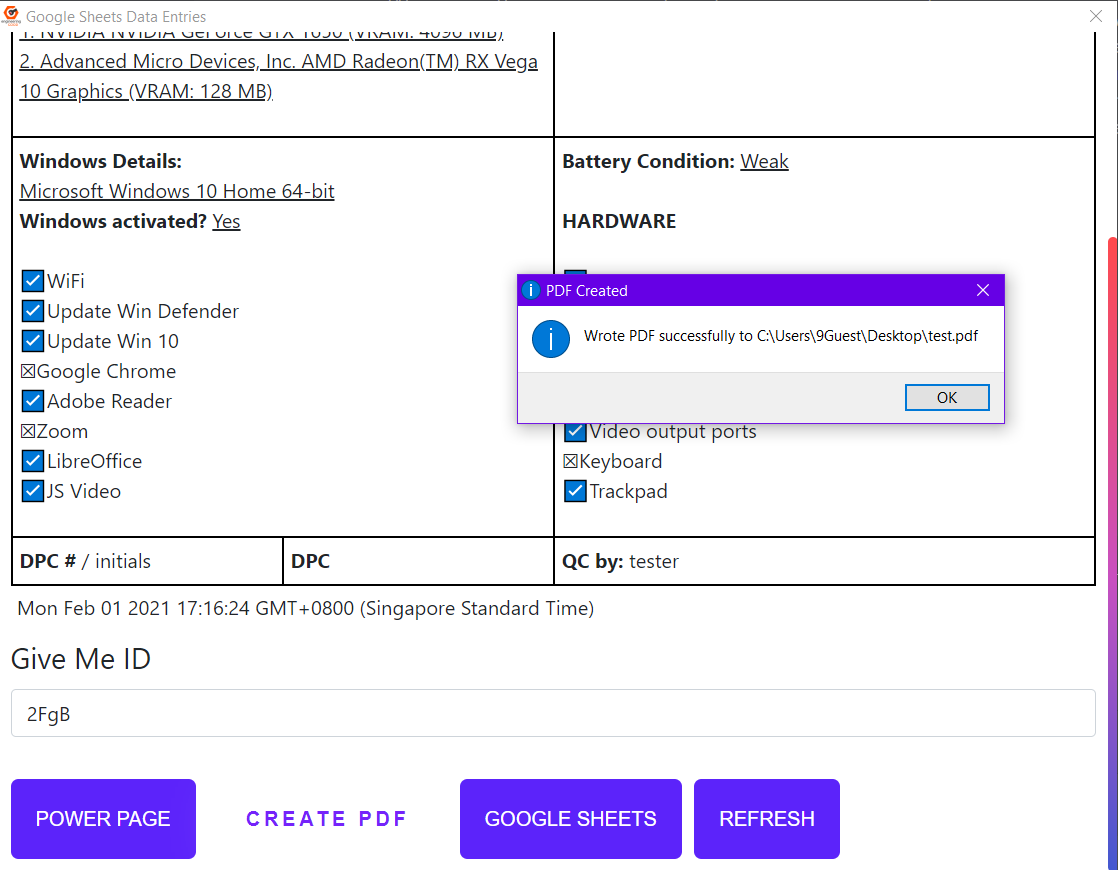
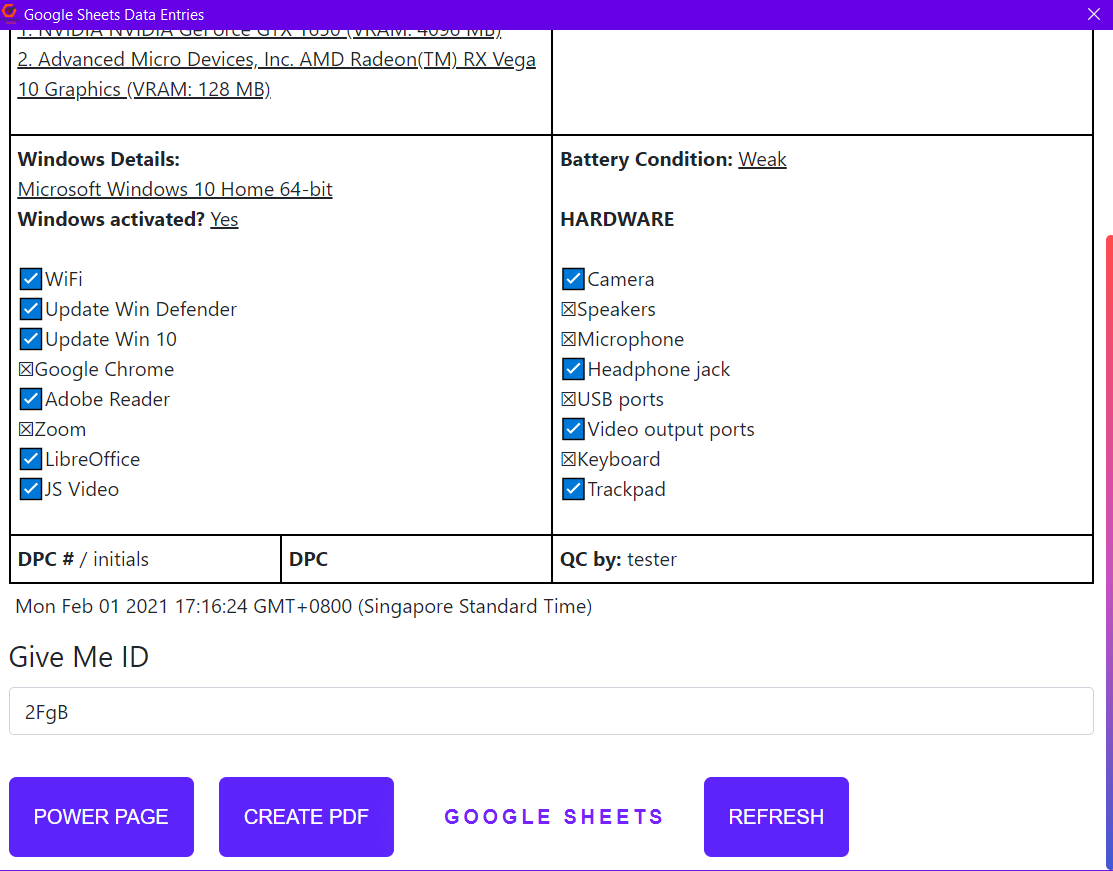
Click "GOOGLE SHEETS"
What if the Sender Page Stuck in "Loading" forever or it has any other problem?
Sometimes the App might unable to detect some information from PC, it will stuck in "Loading" forever.
To solve this problem...
Get to the "//install" directory and run "EGAPPBoxV2_Zero.exe" in EGAPPBox-CAC_Portable folder
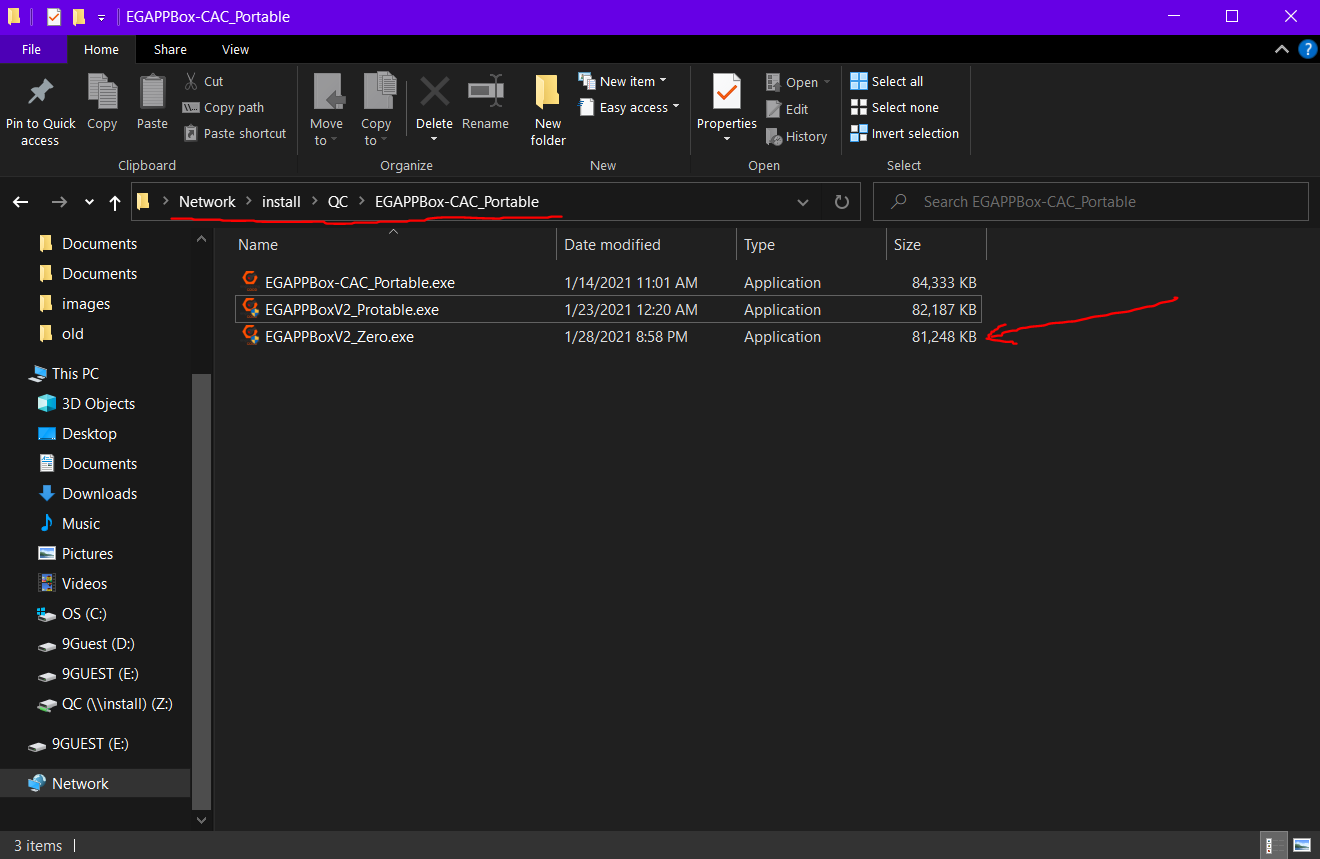
This App is a copy version if EGAPPBox which created to solve some problem in Sender Page. The App only contains Sender Page and its functions.
When Users run "EGAPPBoxV2_Zero", the Sender Page is blank. Users have to press CTRL + Z to auto fill in the form. Then, users just have to edit and fill in the blank in the form manually.
Next, just save and uplaod the data. The data of the PC can now obtain from the Receiver side
If the method suggested above doesn't solve the problem you have, just contact the current developer of EGAPPBox.